This guide explains how to use Cobb Accessport Manager, the desktop application used to manage maps, datalogs, and firmware updates on your Accessport. CAMTuning customers will use this tool regularly throughout the tuning process.
What Is Accessport Manager?
Accessport Manager is the software used to:
Load maps onto your Accessport
Retrieve or delete datalogs
Update Accessport firmware
Keep the software itself up to date
You will use this application anytime you:
Key Features
Drag-and-drop map management
Configuration of the Accessport startup screen (V3 only)
Automatic detection and installation of firmware updates
Automatic checks for new versions of Accessport Manager
Download & Installation
The latest version of Accessport Manager is available here:
https://www.cobbtuning.com/products/accessport-manager
Windows Installation
Run APManagerSetup.exe
Follow the on-screen prompts
Launch via:
Start → Programs → Accessport → Accessport Manager
macOS Installation
Open APManager.dmg
Drag the Accessport Manager icon into Applications
Launch via Applications
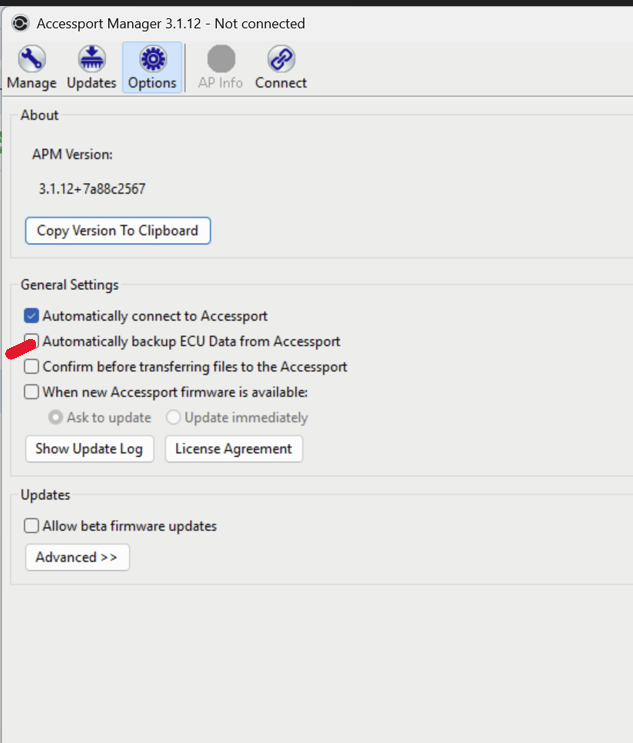
Uncheck this box, under options:
Connecting Your Accessport
Important
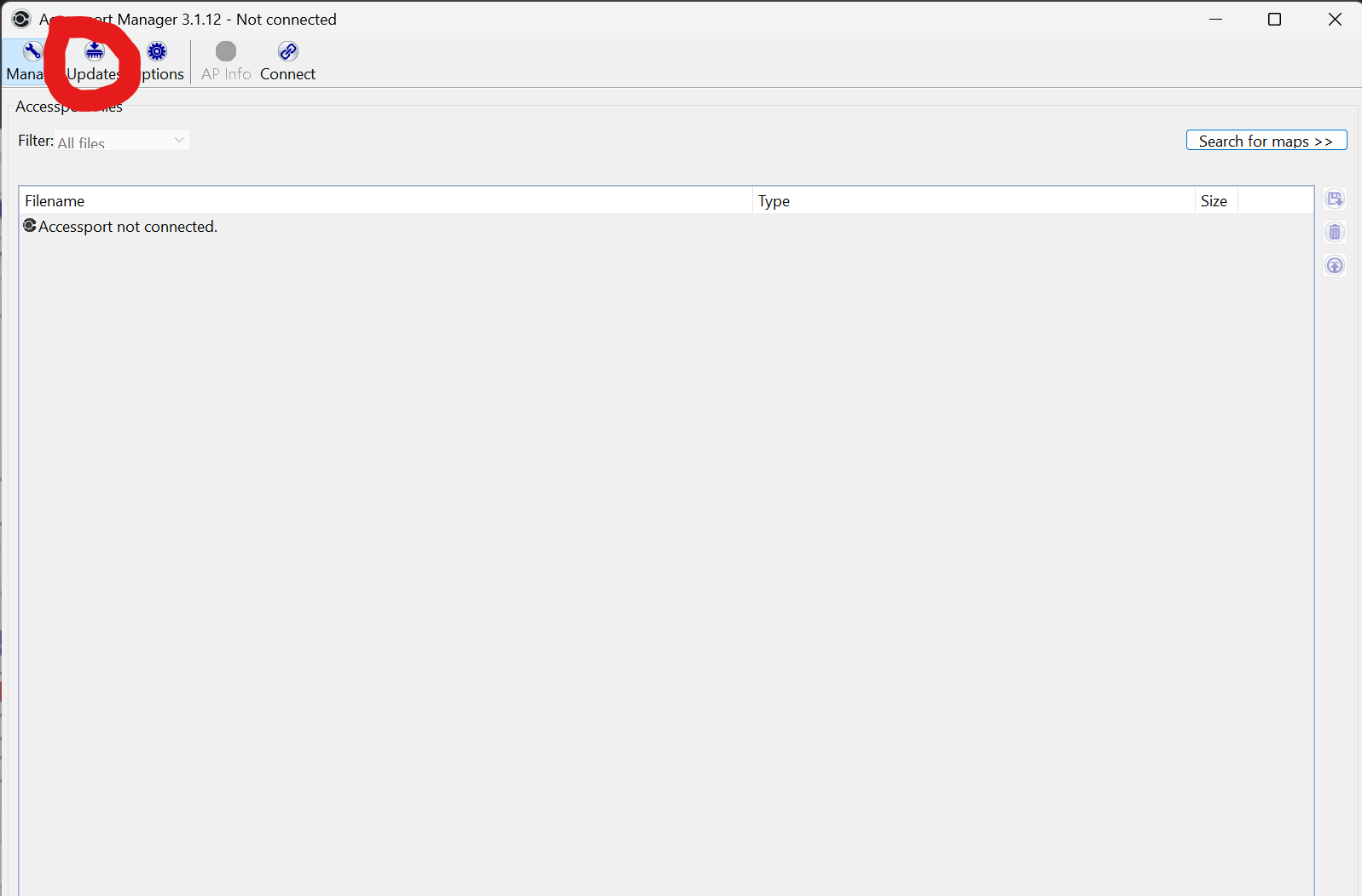
Update your firmware by selecting this button:
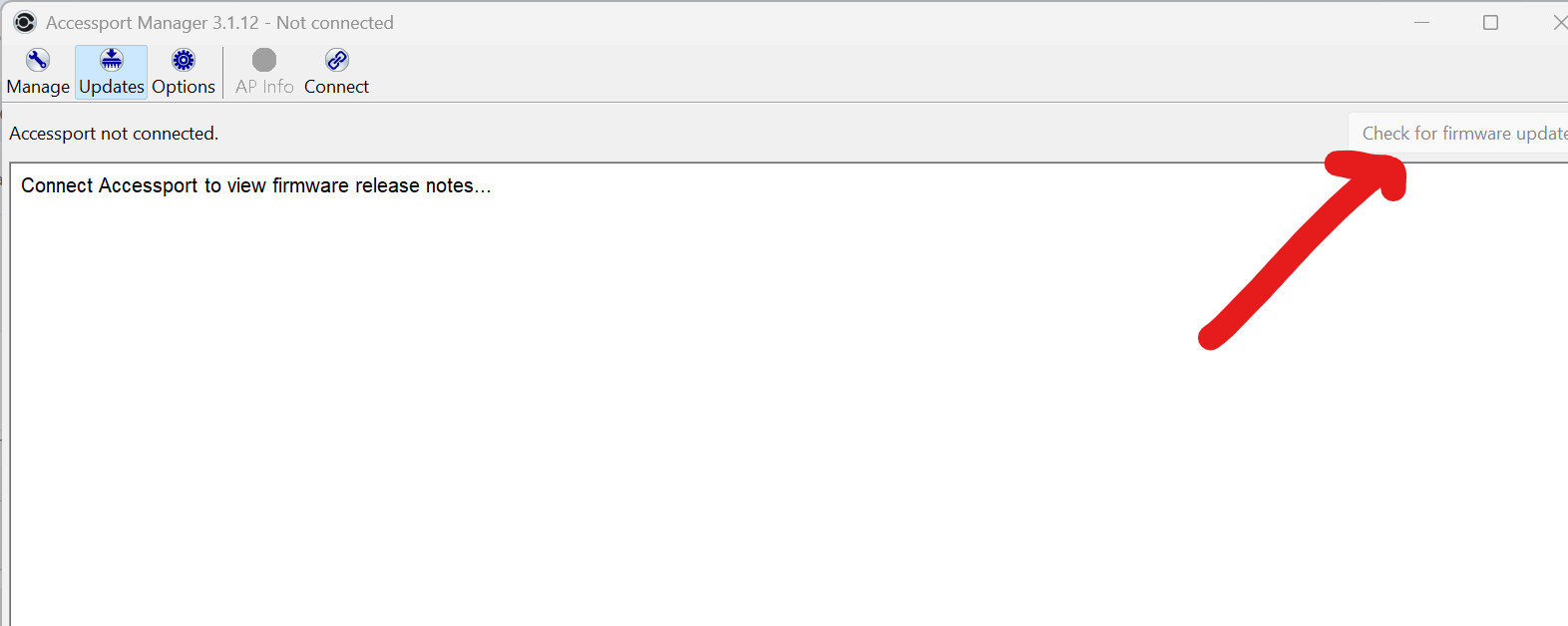
Then select here:
Transferring Maps to the Accessport
There are multiple ways to load maps. Use whichever method is most convenient.
Method 1: Drag and Drop
Drag a map file from your computer directly into the Accessport file list.
Method 2: Import Button
Click Import file(s) to Accessport and select the desired map file(s).
Method 3: Map Search Drag
Drag a map directly from the map search results into the Accessport.
Method 4: Upload Button
Select map(s) from the search results and click
Upload selected map(s) to Accessport.
Retrieving Datalogs
To copy datalogs from your Accessport to your computer:
Select Datalogs or All Files from the Filter dropdown
Either:
Logs are saved as .csv files and should remain in this format when uploaded through CAMTuning’s automated system.
Deleting Files From the Accessport
To remove files from the Accessport:
Select the file(s)
Press the Delete key, or
Click Delete file(s)
Removing old logs helps keep the Accessport organized and avoids confusion when submitting new data.
Final Notes
Keep your Accessport firmware up to date
Use Accessport Manager anytime CAMTuning requests logs or map changes
If you are unsure what to upload, delete, or send, contact CAMTuning Support before proceeding