Welcome to CAMTuning — we’re excited to get started on your Toyota.
This guide is intended for customers who already have an Accessport, and have installed it on their vehicle, If you have not yet installed your Accessport, follow this guide instead:
Tacoma:
Toyota Tacoma iForce Accessport installation and data to send to CAMTuning
4Runner/Land Cruiser:
Toyota 4Runner iForce Accessport installation and data to send to CAMTuning
Please read the entire guide before starting and follow each step carefully. Skipping steps or missing details can delay your tune.
Step 1: Prepare Your Accessport
:
Connect the Accessport to your computer using the included USB cable
Open Accessport Manager and allow it to fully update
Download Accessport Manager here:
ACCESSPORT MANAGER
Uncheck this box under options:
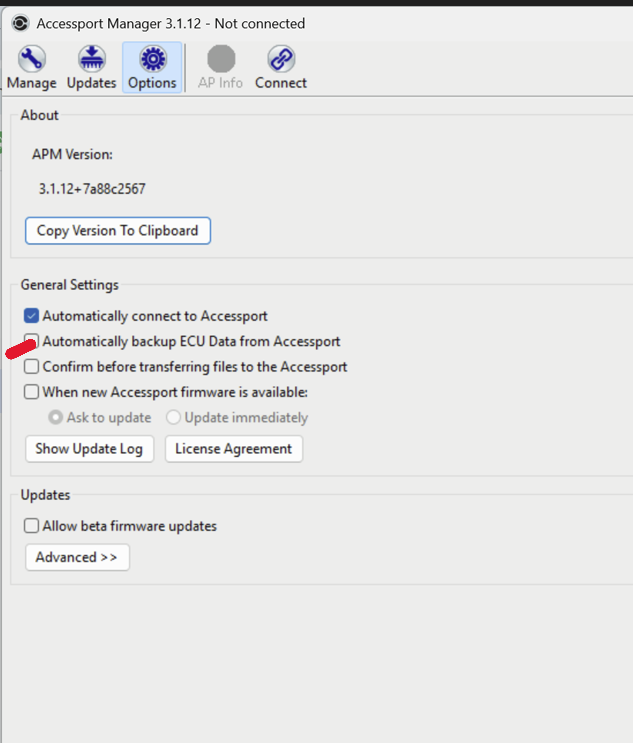
SET UP AUTO OFF ON THE ACCESSPORT TO AVOID BATTERY DRAIN
Step 2: Submit the Remote Tuning Intake Form
To complete the intake process:
Connect the Accessport to your computer
Open Accessport Manager
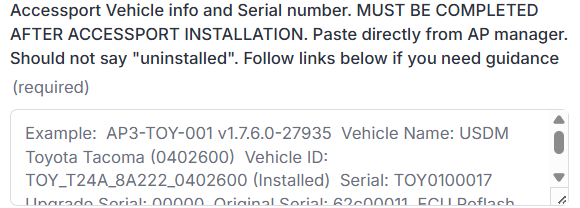
Select AP Info
Copy all displayed information
A short demo video is available here:
Paste this information into the appropriate field on the CAMTuning Tuning Intake Page
Final Notes
Submitting the CAMTuning Tuning Intake Page officially starts the tuning process
Missing or incorrect information will delay your tune
Please ensure all fields are completed accurately
If you have any questions at any point, contact tuningsupport@camtuningperformance.com
Was this article helpful?
That’s Great!
Thank you for your feedback
Sorry! We couldn't be helpful
Thank you for your feedback
Feedback sent
We appreciate your effort and will try to fix the article