Welcome to CAMTuning.
This guide walks you through installing your Cobb Accessport and submitting the information required to begin the remote tuning process.
Please read the entire guide before starting. Following each step carefully helps prevent delays and installation issues.
Step 1: Prepare Your Accessport
Before connecting the Accessport to your vehicle:
Connect the Accessport to your computer using the included USB cable
Open Accessport Manager and allow it to fully update
Download Accessport Manager here:
ACCESSPORT MANAGER
Important
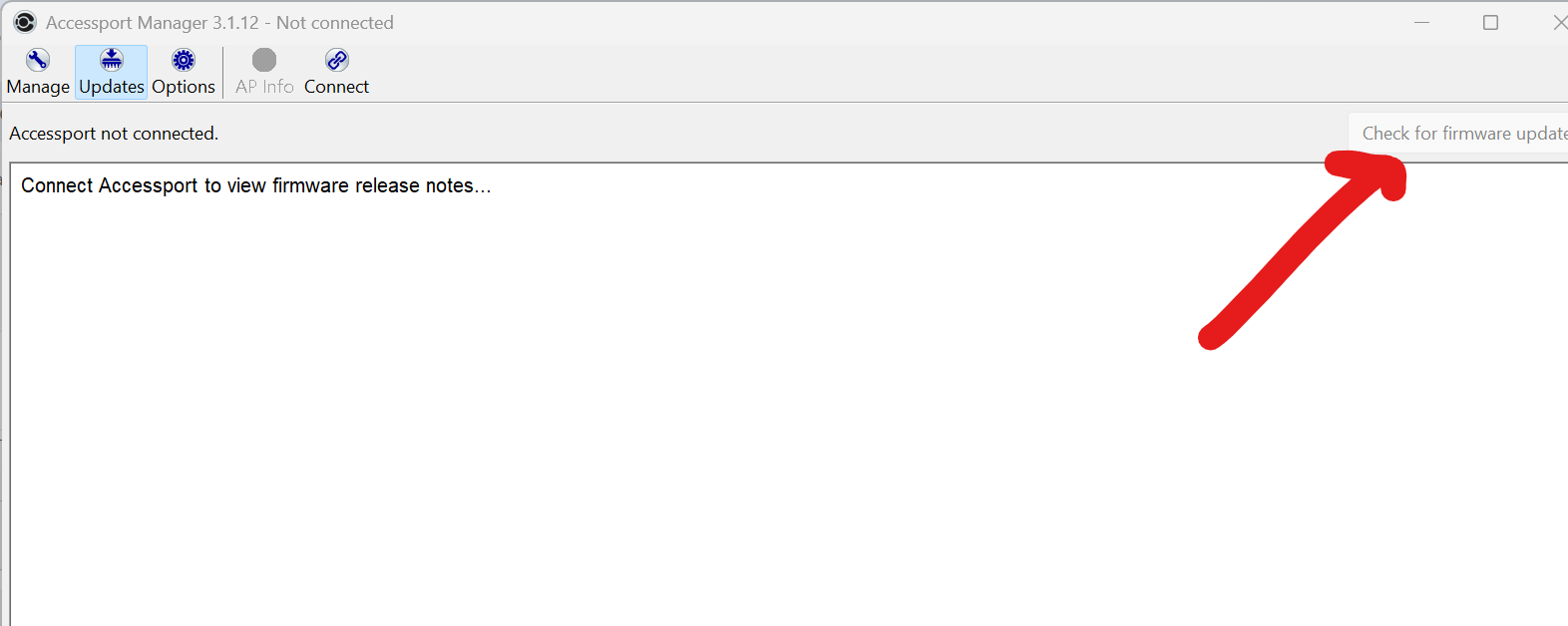
Update your firmware by selecting this button:
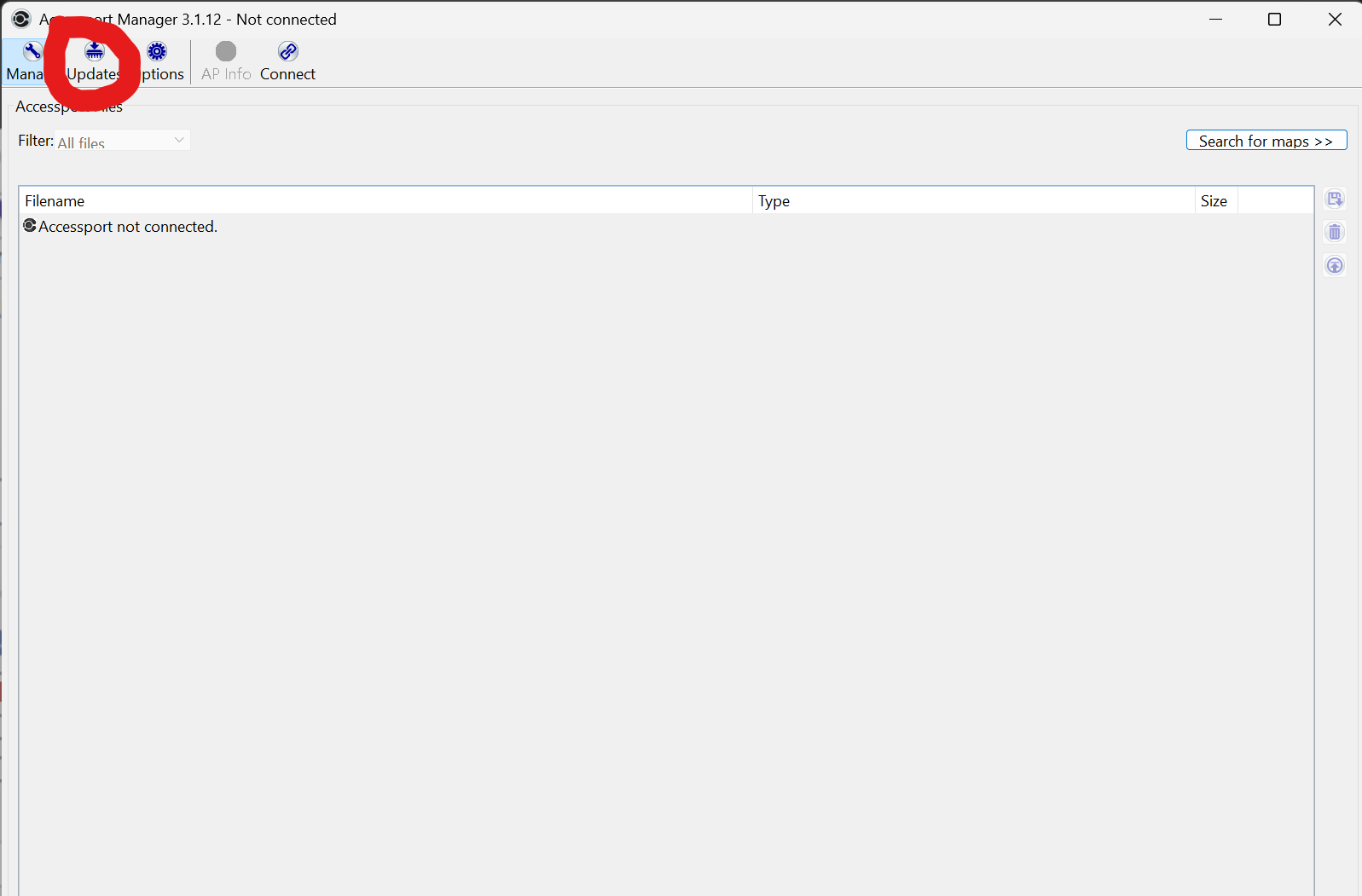
Then select here:
Step 2: Install the Accessport & Bypass Harness
Install the Bypass Harness
Follow Cobb’s written installation instructions:
TOYOTA ACCESSPORT INSTALL
Begin Installation
Power on the Accessport
Select Install
Follow all on-screen instructions exactly
Map Selection
Select Stage0 – Simulated Stock TCM
Pay close attention to all key-off wait times displayed during installation
The battery charger warning may be ignored
What to Expect During Installation
Check engine lights and system warnings during installation are normal
These warnings will be cleared automatically during the final steps
ToyotaCare Note
In rare cases, ToyotaCare may contact you regarding a system malfunction during installation. This is normal and not a cause for concern.
Post-Install Warnings
After installation, you may see warnings related to the secondary collision braking system. These typically clear on their own within a few minutes of driving.
CRITICAL: Post-Installation Cleanup
Do not skip this section.
Before proceeding:
The key must be OFF
The Accessport must be UNPLUGGED
Remove the Bypass Harness
You may remove and store the bypass harness.
Future flashing and datalogging can be performed directly through the OBD port.
SET UP AUTO OFF ON THE ACCESSPORT TO AVOID BATTERY DRAIN:
https://cobbtuning.atlassian.net/wiki/spaces/PRS/pages/425852972/Accessport+Auto+On+Off
Step 3: Submit the Remote Tuning Intake Form (This begins the tuning process)
To complete the intake process:
Connect the Accessport to your computer
Open Accessport Manager
Select AP Info
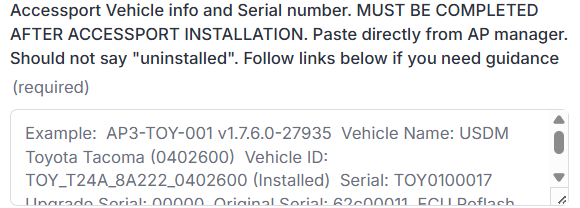
Copy all displayed information
A short demonstration is available here:
Accessport Detail (video)
Paste this information into the appropriate field on the CAMTuning Tuning Intake Page
Final Notes
Submitting the CAMTuning Tuning Intake Page officially starts the tuning process
Missing or incorrect information will delay your tune
Ensure all required fields are completed accurately
If you have questions at any point, contact tuningsupport@camtuningperformance.com.
Was this article helpful?
That’s Great!
Thank you for your feedback
Sorry! We couldn't be helpful
Thank you for your feedback
Feedback sent
We appreciate your effort and will try to fix the article